
DPI Analyzer: Test Your Mouse DPI Online
A DPI analyzer online helps you estimate how your mouse responds to physical movement. This is useful for gaming, office work, graphic design, and troubleshooting mouse sensitivity.
What Is Mouse DPI?
DPI means Dots Per Inch. For computer mice, the term is also commonly related to CPI, or Counts Per Inch.
Mouse DPI describes how much cursor movement is produced from a given amount of physical mouse movement. A higher DPI generally makes the cursor move farther with the same hand movement.
For example, a mouse set to 1600 DPI can produce more cursor movement from the same physical movement than a mouse set to 800 DPI.
DPI is not automatically a measure of mouse quality. A higher number can be useful in some situations, but control and consistent tracking are also important.
Why Does Mouse DPI Matter?
Mouse DPI affects how quickly the pointer responds to your hand movement. It can change how much physical movement you need for normal cursor tasks or aiming in games.
Games may use DPI as part of their overall sensitivity setup. Office users may prefer a setting that feels comfortable for navigation and daily work.
Graphic designers and other creative users may also adjust DPI when they need more or less cursor control.
The best setting depends on your mouse, software settings, screen setup, and personal preference.
DPI for Gaming
DPI can affect how your aim and crosshair movement feel in FPS games. A very high or very low setting is not automatically better.
DPI for Productivity and Design
DPI is not only important for gaming. It can also affect everyday cursor control.
Office work may benefit from a comfortable pointer speed, while graphic design, photo editing, CAD, and other precision tasks may require more controlled movement.
If the cursor feels too fast or too slow, checking your DPI and pointer settings can help you understand the reason.
What DPI Should You Use?
There is no single DPI value that is perfect for everyone. The best setting depends on your mouse, screen, available mousepad space, task, and personal preference.
For FPS gaming, some players prefer lower DPI with lower in-game sensitivity. For general desktop use, a higher DPI may reduce the amount of physical movement needed.
Instead of copying someone else’s DPI, test different settings and choose one that gives you comfortable and repeatable control.
Overview
| Use case | Common DPI range |
| Office work and browsing | 800–1,600 |
| Graphic design and photo editing | 800–1,600 |
| 4K or multi-monitor setups | 1,200–3,200 |
| FPS games such as Valorant and CS2 | 400–1,600 |
What Is a Mouse DPI Analyzer?
A mouse DPI analyzer is an online tool that estimates your mouse DPI by comparing physical mouse movement with cursor movement. DPI means Dots Per Inch and is commonly used to describe mouse sensitivity.
For example, a mouse set to 800 DPI is expected to produce more cursor movement per inch than a mouse set to 400 DPI. The analyzer helps you check how your active mouse setting behaves during a physical movement test.
Who Developed the DPI Analyzer Tool?
The DPI Analyzer Tool is an online tool designed to help users measure their mouse DPI. It uses physical mouse movement and on-screen cursor movement to estimate DPI. The tool can help users check mouse sensitivity for gaming and everyday tasks.
How to Test Your Mouse DPI Online?
You can test your mouse DPI with a physical ruler and an online DPI analyzer. The process only takes a short time.
Prepare Your Mouse:
Place your mouse on the surface you normally use. Put a ruler or measuring tape beside the mousepad where you can clearly measure the movement distance.
Use the same mouse, DPI profile, and surface throughout the test. This makes repeated measurements easier to compare.
Choose a Measurement Distance:
Choose a distance that you can move accurately. A longer distance can reduce the effect of small starting and stopping errors.
For example, you can mark a few inches or several centimeters on your mousepad. Make sure you can move the mouse between the two points without changing direction.
Start the DPI Test:
Check the DPI Result:
Repeat the Test:
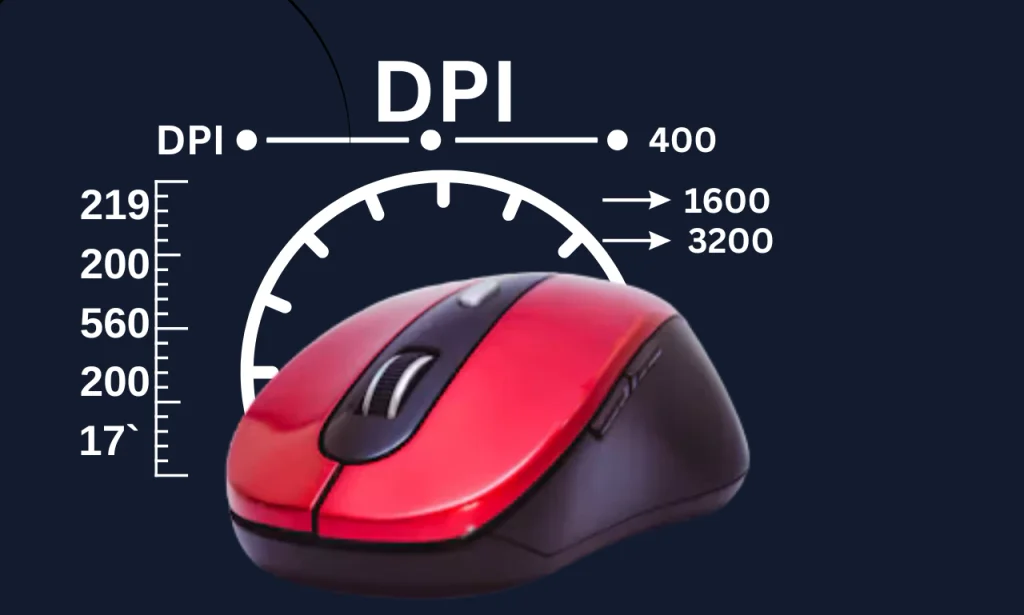
How to Change Mouse DPI on Windows 10/11?
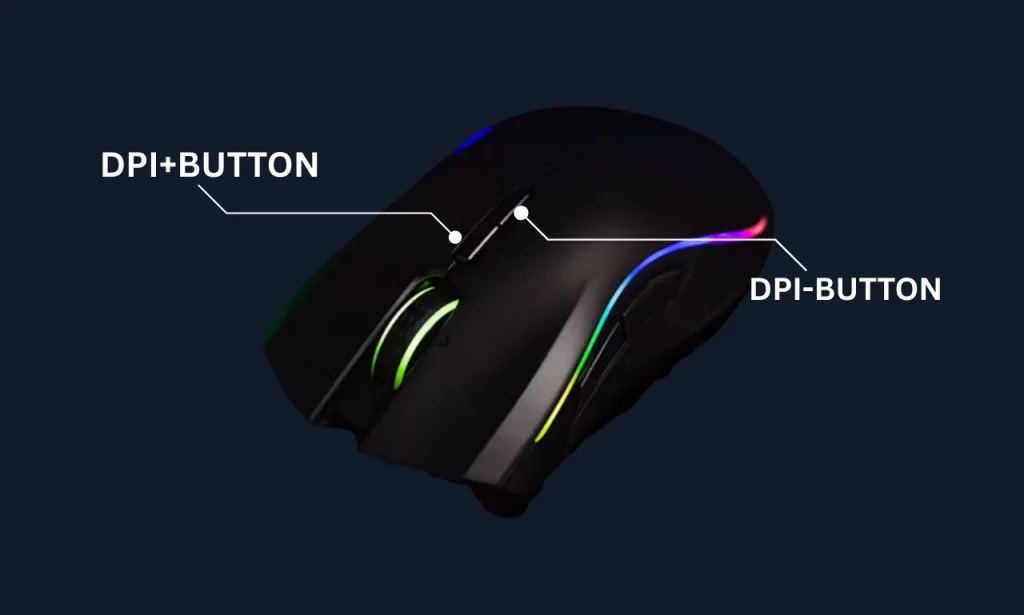
You can change your mouse DPI using its dedicated DPI button or the manufacturer’s software. Open the software and select your preferred DPI level. If your mouse has no DPI button, check its manual for supported options. Higher DPI makes the cursor move farther with the same physical mouse movement.
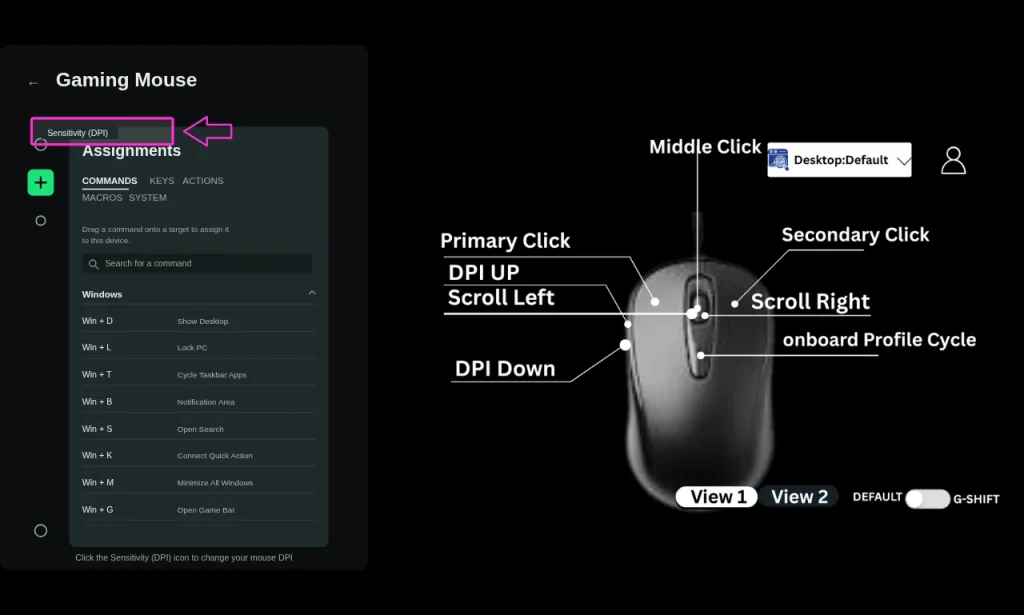
Using the DPI Button on Your Mouse:
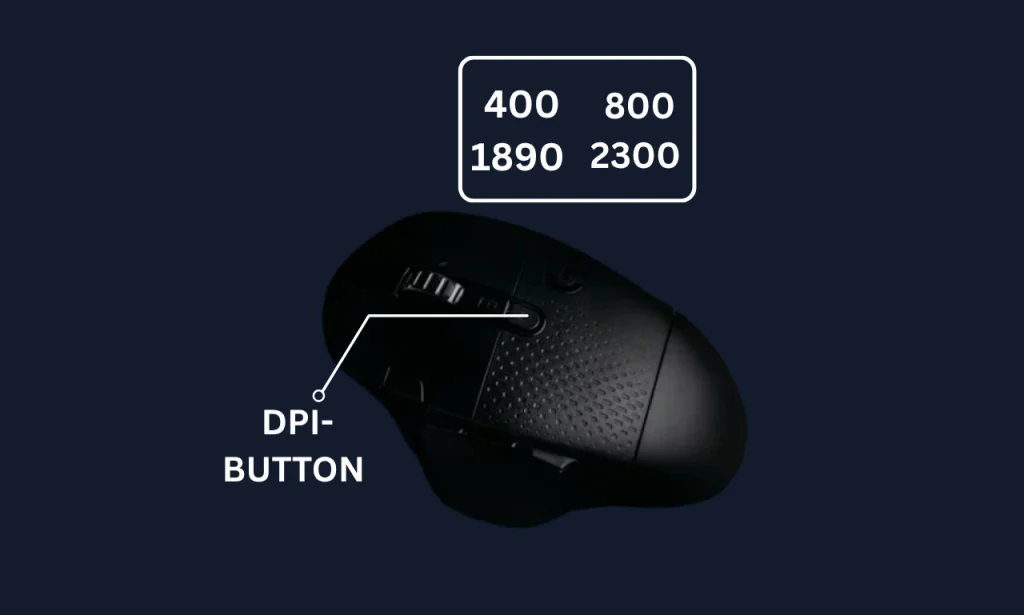
Some mice have a dedicated DPI button near the scroll wheel. Press it to switch between the available DPI levels. Move your mouse to check how the cursor speed changes. The available settings depend on your mouse model.
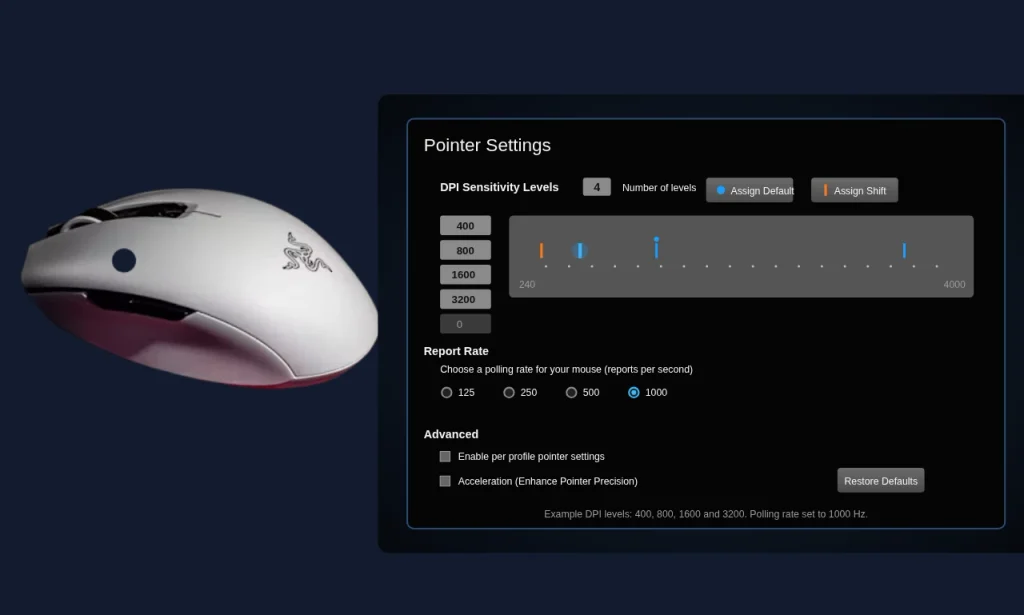
Using Mouse Software (for Gaming Mice):
Many gaming mice come with software to adjust DPI settings. Open the software and choose your preferred DPI level. Some tools let you save different DPI profiles for gaming or everyday tasks. The available options depend on your mouse model.
Via Windows Pointer Settings:
Open Settings on Windows and go to Bluetooth & devices, then select Mouse. Adjust the pointer speed to make the cursor move faster or slower. Keep in mind that this changes pointer speed, not your mouse’s actual hardware DPI.
Why Should You Check Your Mouse DPI?
Checking your mouse DPI helps you understand how quickly your cursor moves on the screen. It can help you find differences between your mouse’s set DPI and its actual performance. This is useful for improving aim in games, making daily tasks easier, and keeping mouse movement consistent.
What Is the Use of This Website?
This website helps you test and estimate your mouse DPI online. Move your mouse over a known distance to see how far the cursor travels on your screen. You can use the result to check your mouse settings, compare DPI values, and improve control in games or daily tasks.
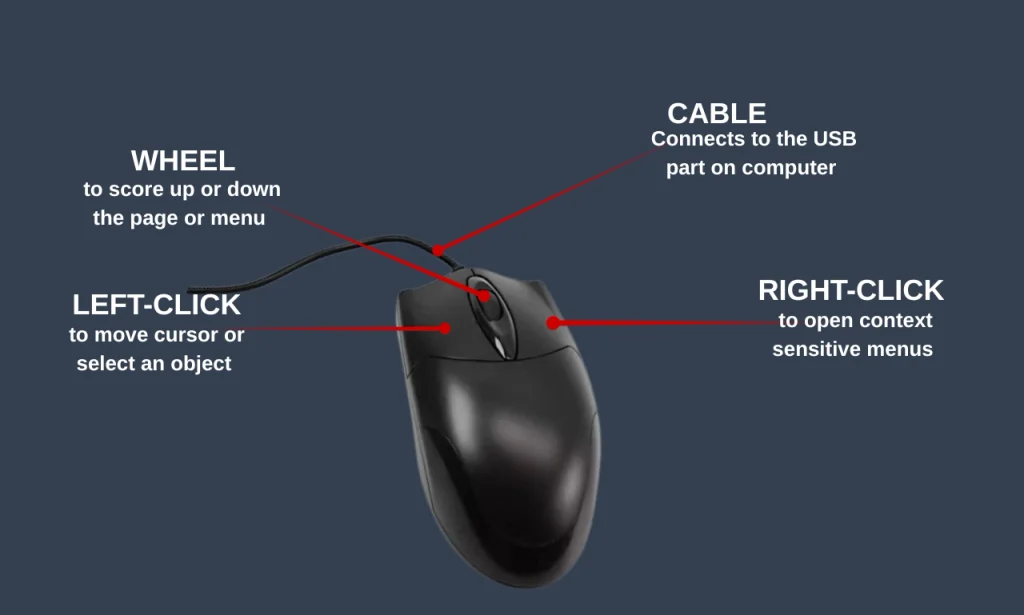
Frequently Asked Questions
Conclusion
A DPI analyzer is a quick way to learn your real mouse DPI. Use a ruler, move in a straight line, and repeat the test. Then trust the median result.
Small DPI differences are normal. Large gaps usually point to a setting you can fix. Run the test now and see your result.